Save on every plan.
Compare our plans to AT&T and Verizon with our savings calculator and find out just how much you can save when you switch to
Use our savings calculator to find out how you can save versus AT&T and Verizon at

Compare our plans to AT&T and Verizon with our savings calculator and find out just how much you can save when you switch to
Use our savings calculator to find out how you can save versus AT&T and Verizon at
Via virtual prepaid Mastercard. Card typically takes 15 days.

Via 24 monthly bill credits when you trade in an eligible device and have or switch to our Go5G Plus plan.
If you cancel before 24 credits, credits stop & balance on required finance agreement may be due; contact us. For well-qualified customers; plus tax.

Via 24 monthly bill credits when you switch with four new qualifying lines and trade in four eligible devices. With AutoPay discount using eligible payment method. Plus, taxes & fees.

Up to $730 off via 24 monthly bill credits when you add a qualifying line and trade in an eligible device.

Via virtual prepaid Mastercard® when you activate a new unlimited Home Internet line online or via chat. Allow 10 weeks.
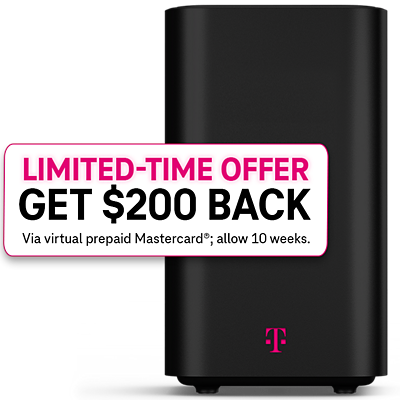
Plus taxes & fees. During congestion, customers using >50GB/mo. may notice reduced speeds due to data prioritization. Video streams in SD quality.

Via 24 monthly bill credits when you add a line on Go5G Plus or Go5G Next. For well-qualified customers; plus tax.

Up to $629.99 off via 24 monthly bill credits when you port in a qualifying new line on an eligible plan.
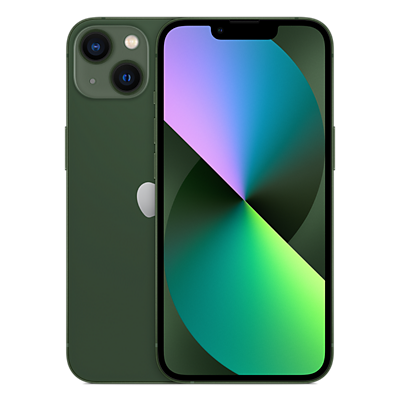
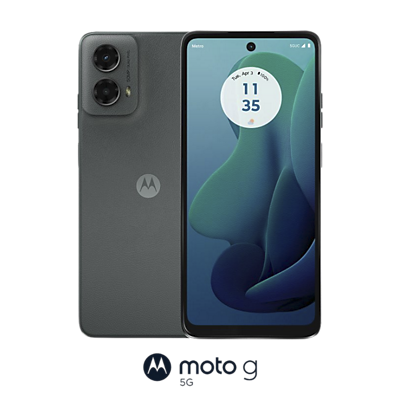
If you cancel wireless service before receiving all credits, credits stop and remaining balance on required finance agreement is due. For well-qualified customers, plus tax.

per phone line for 3 lines with AutoPay & eligible payment method.
Upgrade-ready every year with Go5G Next. New and existing customers always get the same great phone offers and enjoy all the amazing benefits of Go5G Plus, like unlimited premium data and entertainment
Activate up to 4K UHD streaming on capable device, or video typically streams in SD. Up to 50GB high-speed tethering then unlimited on our network at max 3G speeds. Upgrade-ready in 1 year. Qualifying new financed device required & upgrade qualifying device in good condition with 50% paid off.


per phone line for 3 lines with AutoPay & eligible payment method.
New & existing customers always get the same device deals and can upgrade every two years with New in Two. Plus, enjoy benefits like unlimited premium data, streaming entertainment & travel perks.
T‑Mobile offers 2-year financing agreements on Go5G Plus Plans. Activate up to 4K UHD streaming on capable device, or video streams in SD. Up to 50GB high-speed tethering then unlimited on our network at max 3G speeds.


per phone line for 3 lines with AutoPay & eligible payment method.
Get an unlimited phone plan with all the essential benefits you need including 5G access.
During congestion, customers on this plan may notice speeds lower than other customers and further reduction if using >50GB/mo., due to data prioritization. Video typically streams in SD.



Qualifying service & capable device required. Turning on Scam Block might block calls you want; disable any time.

NO PURCHASE NECESSARY. US/DC/PR/USVI. 18+. 5/7/24 5:00 AM ET-5/14/24 4:59 AM ET. Find official rules at: amoe.
Qual’g plan req’d. Visit

Offer subject to change. Receive Netflix Standard with ads while you maintain a qualifying line in good standing.

Reg. in Apple TV app req’d. When you maintain a qualifying Go5G Next line in good standing.

Offer includes Hulu (With Ads). After 12 months, consumer action is required to continue complimentary subscription. If no action is taken, subscription auto-renews at $7.99/month or then-current regular monthly price.

With qualifying plans. Not for extended international use. Coverage not available in some areas. See plan for details.